Introduction
From sourcing trending platform products and submitting custom procurement requests, through to product listing and data synchronization, you can quickly launch product listings starting with zero inventory.
Step 1: Browse the Trending‑Product Marketplace
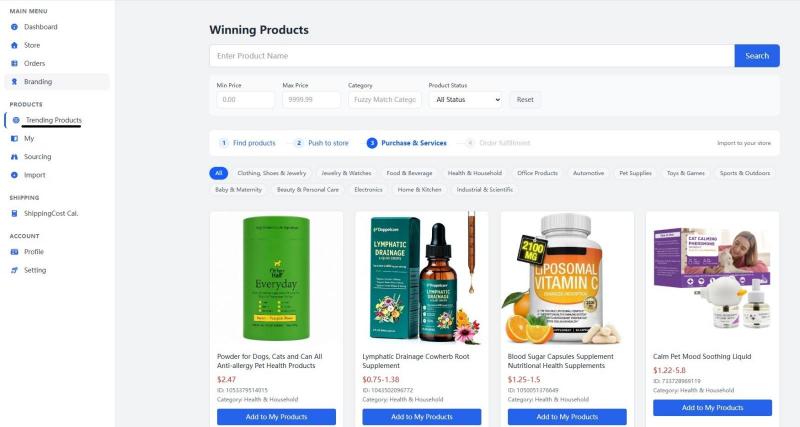
- Navigate to MAIN MENU > PRODUCTS > Trending Products on the left‑hand sidebar to open the Winning Products page.
- Enter a Product Name in the top search box, or search for products using filter conditions: Min Price, Max Price, Category, Product Status.
- Click category tabs (such as Clothing, Shoes & Jewelry, Health & Household, Pet Supplies, etc.) to browse the corresponding product categories.
- A workflow guide is displayed at the top of the page: 1 Find products → 2 Push to store → 3 Purchase & Services → 4 Order fulfillment.
- Once you find your desired product, click the Add to My Products button below the product card to add it to your product library.
Step 2: Submit a Custom Sourcing Request
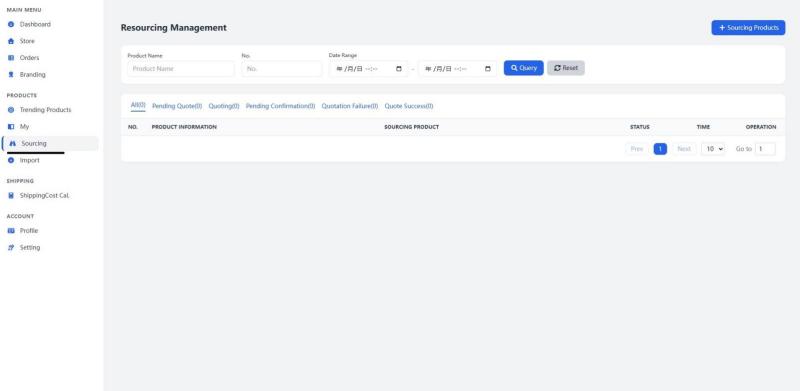
- Navigate to MAIN MENU > PRODUCTS > Sourcing on the left‑hand sidebar to open the Sourcing Management page.
- Click the + Sourcing Products button in the upper‑right corner of the page to create a new sourcing request.
- After submission, track the processing progress via the status tabs at the top of the page: All, Pending Quote, Quoting, Pending Confirmation, Quotation Failure, Quote Success.
- Check fields including Product Information, Sourcing Product, Status, Time and Operation in the list to monitor the full‑progress status of your procurement.
Step 3: Manage your product library and push products to your store
Step 3: Manage Product Library and Push Products to Store
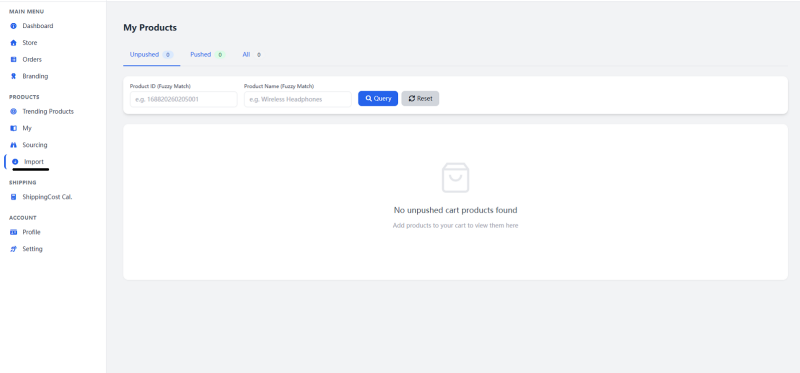
- Navigate to MAIN MENU > PRODUCTS > Import on the left‑hand sidebar to open the My Products page.
- The page opens on the Unpushed tab by default, showing products that have not yet been pushed to your store. Empty‑state prompt: "No unpushed cart products found. Add products to your cart to view them here".
- You may switch to the Pushed or All tab to view products of different statuses.
- Locate target products by searching with Product ID (Fuzzy Match) or Product Name (Fuzzy Match).
- Perform the push operation in the Unpushed list to list the products on your Shopify store.
Step 4: Sync Existing Shopify Products
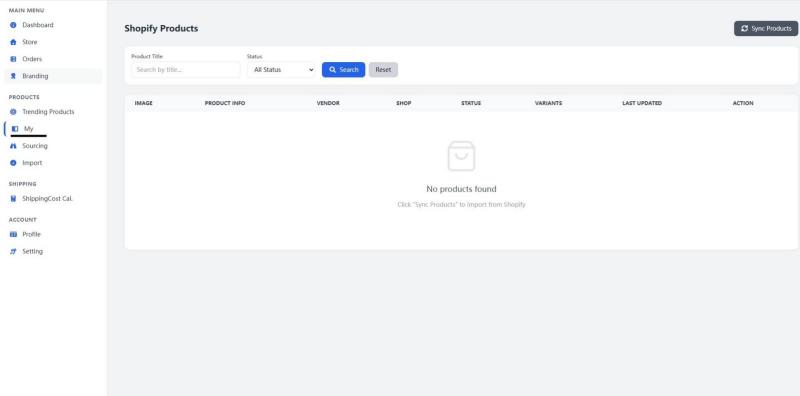
- Navigate to MAIN MENU > PRODUCTS > My on the left‑hand sidebar to open the Shopify Products page.
- Click the Sync Products button in the upper‑right corner of the page to import existing products from your Shopify store. Empty‑state prompt: "Click 'Sync Products' to import from Shopify".
- After synchronization is completed, products will be displayed in the list with fields including Image, Product Info, Vendor, Shop, Status, Variants, Last Updated and Action.