Introduction
Complete store authorization and data connection first, then centrally process orders, calculate shipping costs and track shipments. Manage your entire fulfillment workflow within a single dashboard.
Step 1: Connect your Shopify store
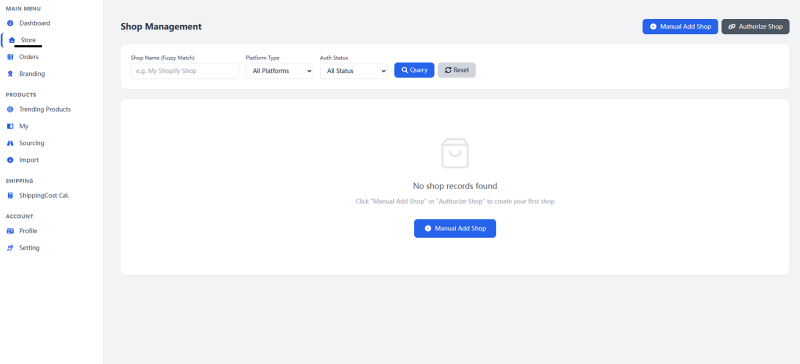
- Navigate to MAIN MENU > Store on the left‑hand sidebar to open the Shop Management page.
- An empty‑state prompt will appear on the page: "No shop records found. Click 'Manual Add Shop' or 'Authorize Shop' to create your first shop".
- Click the Authorize Shop button in the upper‑right corner of the page (or select Manual Add Shop).
- Enter your store information as prompted and finish the Shopify authorization and connection process.
- Once connected successfully, your store will be displayed in the list. You can filter and search stores by Shop Name (Fuzzy Match), Platform Type and Auth Status.
Step 2: View the Data Dashboard
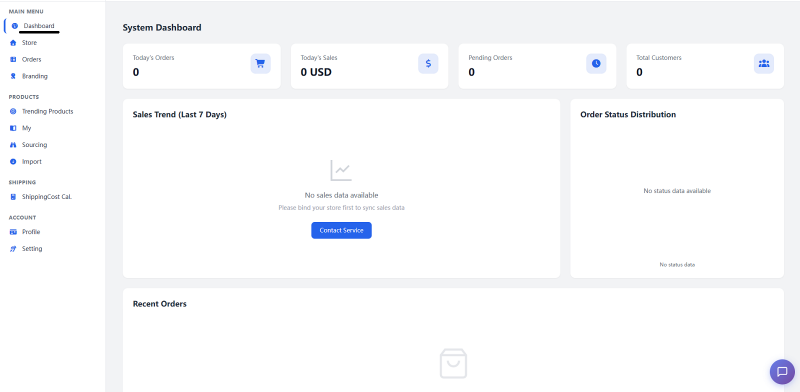
- Navigate to MAIN MENU > Dashboard on the left‑hand sidebar to open the System Dashboard page.
- Four core data cards are displayed at the top of the page: Today's Orders, Today's Sales, Pending Orders, Total Customers.
- Scroll down to view the chart sections for Sales Trend (Last 7 Days) and Order Status Distribution.
- On your first visit, the chart area will show the prompt: "No sales data available. Please bind your store first to sync sales data". You may click Contact Service to get assistance from customer support.
- The Recent Orders section at the bottom of the page displays the list of your latest orders.
Step 3: Sync and Manage Orders
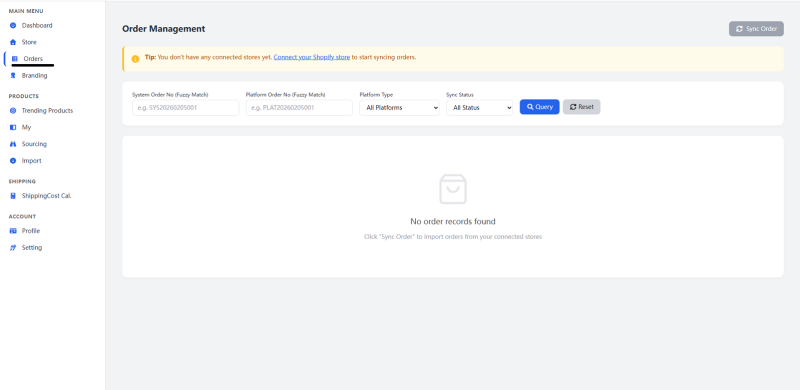
- Navigate to MAIN MENU > Orders on the left‑hand sidebar to open the Order Management page.
- If you have not connected any store, a yellow notification bar will appear at the top of the page: "You don't have any connected stores yet. Connect your Shopify store to start syncing orders".
- After connecting your store, click the Sync Order button in the upper‑right corner of the page to import order data from your connected stores.
- Use the search bar to filter and search orders by System Order No (Fuzzy Match), Platform Order No (Fuzzy Match), Platform Type and Sync Status.
- View details, status and action options within the order list.
Step 4: Calculate Shipping Costs and Track Shipments
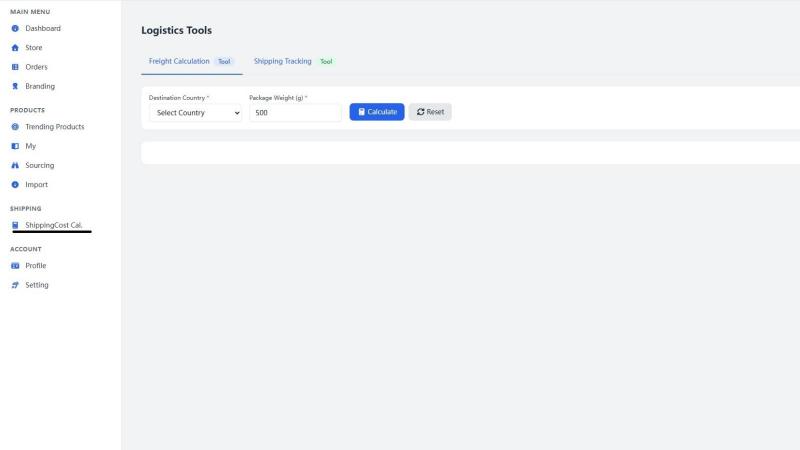
- Navigate to SHIPPING > ShippingCost Cal. on the left‑hand sidebar to open the Logistics Tools page.
- The Freight Calculation tab is displayed by default.
- Select the destination country from the Destination Country dropdown, and enter the package weight in the Package Weight (g) input box.
- Click the Calculate button to obtain the shipping‑cost results.
- Click the Shipping Tracking tab to switch to the shipment‑tracking page and check your parcel delivery trail.